


If you haven't yet, follow us on X (Twitter), Mastodon, or Bluesky to know when we post new articles, and join our Reddit or Subscribe to us on YouTube to check out our content and interact with our awesome community. Thank you for supporting us!
Recently, we have been seeing many videos and shorts showing off new custom boot videos on the Steam Deck, including one that mirrors the GameCube boot video and turns it into a Steam Machine. And yes, we absolutely did as well, since we can't wait for the new Steam Machine to release:
With these new boot videos and renewed interest, I wanted to create a guide showing how to easily get these custom videos and make them play on your Steam Deck. A lot of these videos are just as great, if not better, than the official ones on the Steam Point Store, so it's worth checking out for sure.
There are a few ways to do this, so we will go over each of them:
How to Download and Install Custom Boot Videos on the Steam Deck:
SteamDeckRepoManager (Recommended)
There are two ways that I would recommend downloading and installing these videos, and this one is generally the easier of the two.
Step 1:
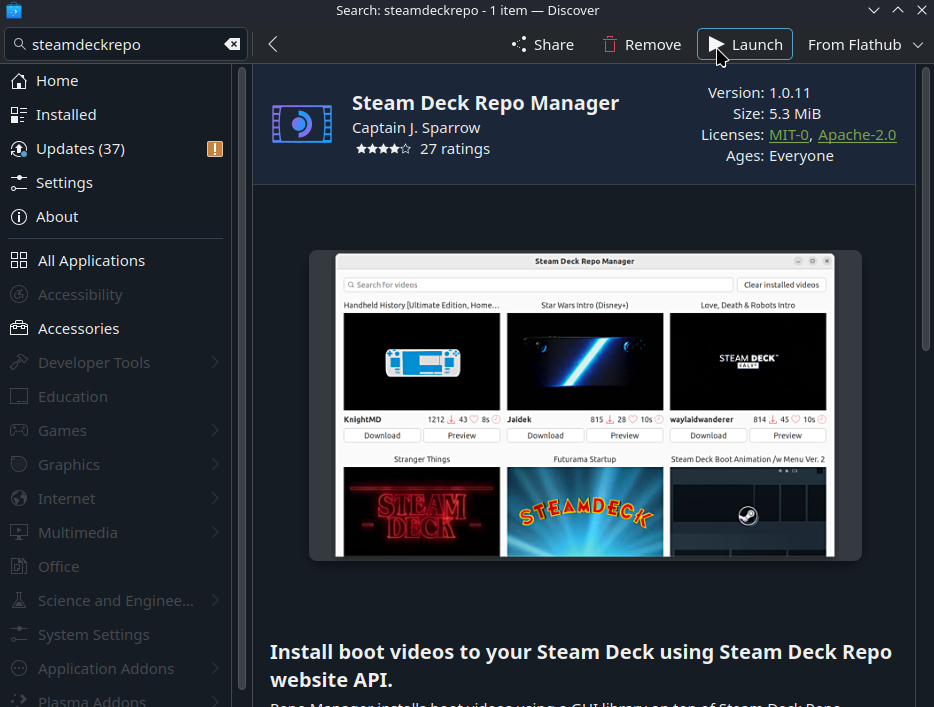
Head to Desktop mode and open up the Discover Store. From there, search for "Steam Deck Repo Manager", which should be created by CapitaineJSparrow, and download/install it.
Step 2:
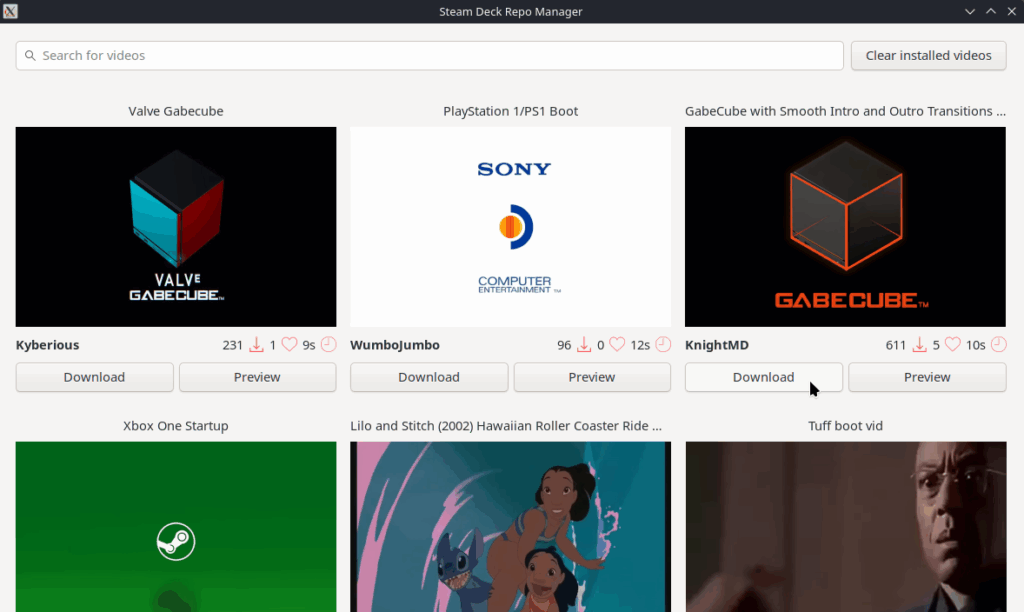
Open up Steam Deck Repo Manager and find the boot video you want. Once you do, just hit the download button. It will automatically download and install the boot video of your choice. For this guide, I will be using the GabeCube boot video by KnightMD that is in the video above.
Step 3:
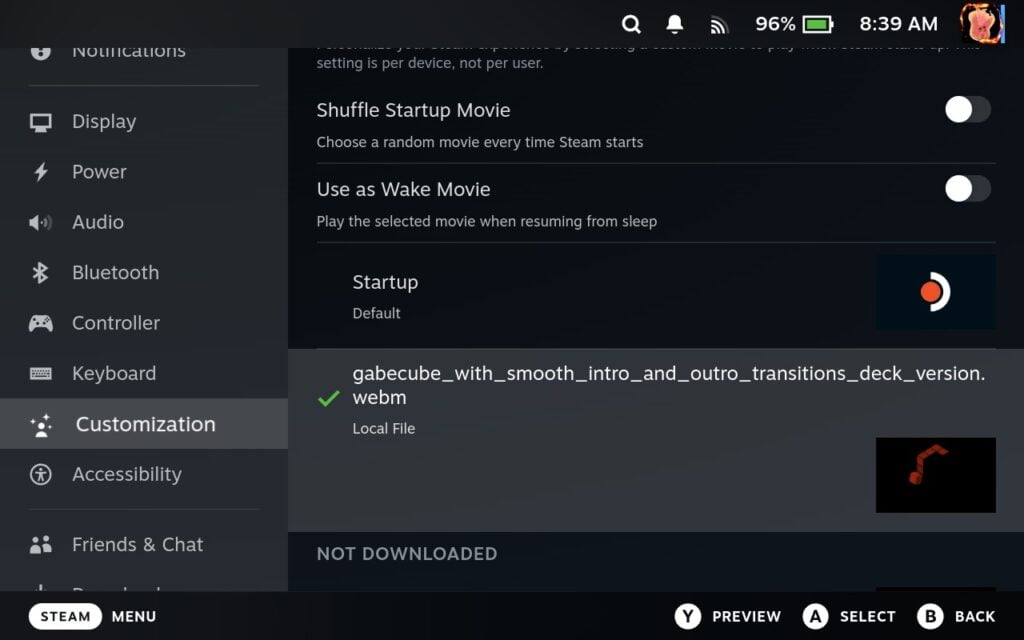
After that, head back into Game Mode and go to the Customization tab. There, you can find your downloaded boot videos in the local section and enable them.
Step 4 (Optional):
If you want to do everything from Game Mode, you can add the Steam Deck Repo Manager to Steam and use it in Game Mode. I recommend changing the control scheme to Keyboard and Mouse. It's still a little awkward to use, but you can download, install, and enable boot videos all within Game Mode.


Manual Install
Step 1:
Head to Desktop mode and open your web browser. Head to SteamDeckRepo.com and find the boot video you want.

Step 2:
Once you do, just click the green download button at the top right of the screen. For this guide, I will be using the GabeCube boot video by KnightMD that is in the video above.

Step 3:
Now, we have to get to the folder path where we will be putting the new videos we download. Unless you have done this before, we will have to create a couple of folders. So first, head to this folder path in your Dolphin file browser by pasting this into the top of Dolphin:
/home/deck/.steam/root/config/
Step 4:
Once there, create a folder called "uioverrides", and then inside of it, create a folder called "movies" to top it off. From there, we should be in this specific folder path:
/home/deck/.steam/root/config/uioverrides/movies/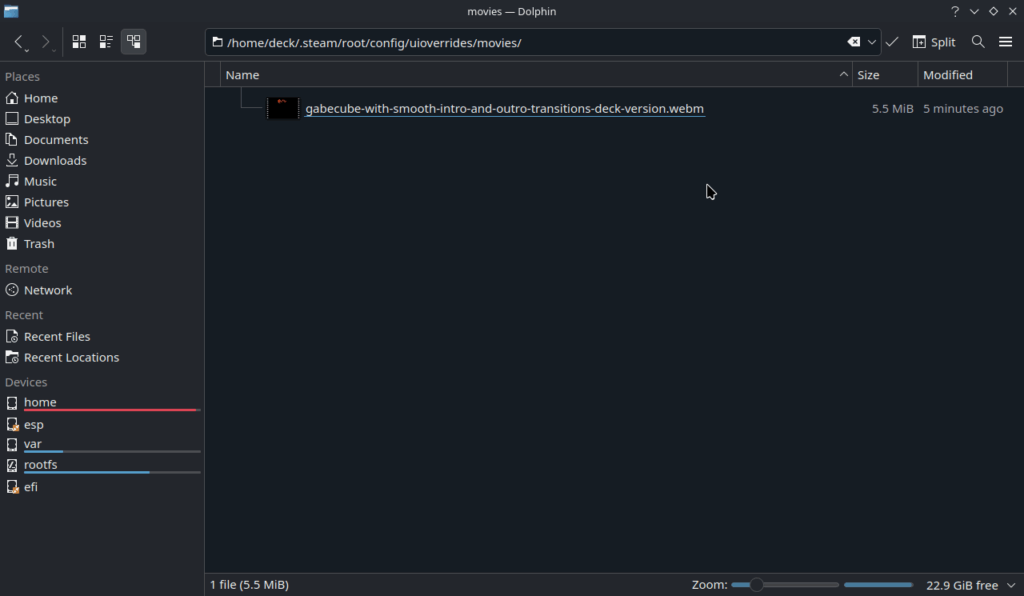
Step 5:
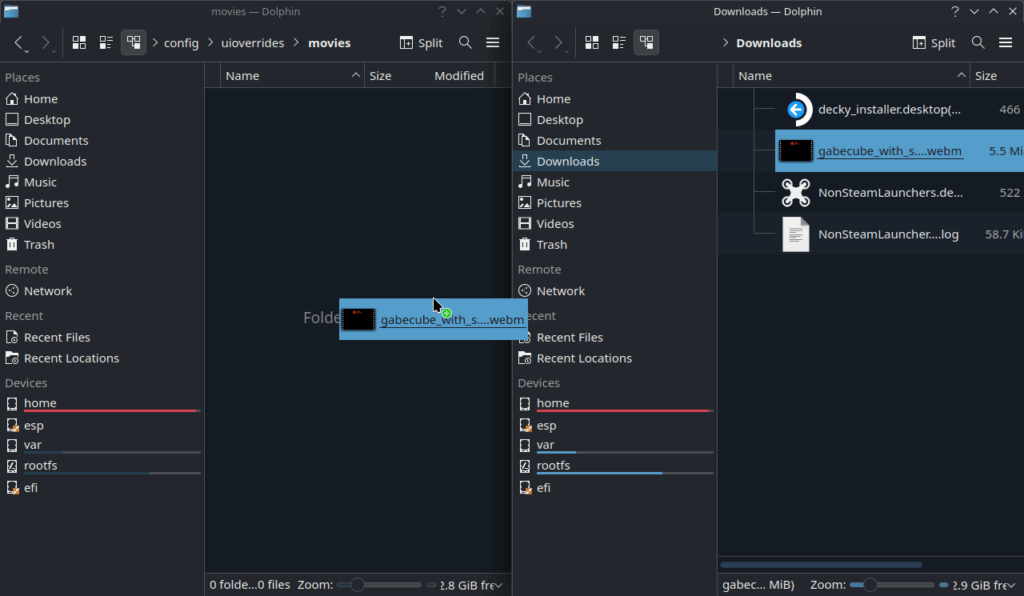
Now, all you have to do is move your downloaded videos into the newly made "movies" folder to make them usable.
Step 6:
Finally, just head to Game Mode, go to the Customization tab, and enable the boot video you want.
There is also a Decky Plugin called "Animation Changer" that can do all of this, but as of writing this guide, Decky is not working, so I will not be including it here. However, if it is working for you, you can download the Animation Changer plugin from the Decky store and try it for yourself.
And that's how to get custom boot videos on your Steam Deck! It's pretty fantastic when it works, and some of these videos are just incredible. Here are a few of my current favorites that I highly recommend checking out:
Rings by joaquim
Dreamcast by OneAteHundreds
Handheld History by KnightMD
Batman the Animated Series by Greg2B
There are many more apart from these, so check them all out on Steam Deck Repo to see for yourself what else they have.
If you enjoyed this guide, check out the rest of the content on SteamDeckHQ! We have a wide variety of game reviews and news that will help your gaming experience. Whether you're looking for news, tips and tutorials, game settings and reviews, or just want to stay up-to-date on the latest trends, we've got you covered!



i think the plugging "animation changer" still does not work 30th jan 2026
so this guide is very helpful
thank you very much